
How Chain of Title Works – Tracing Property Ownership Through County Records
 Aug 24th, 2026

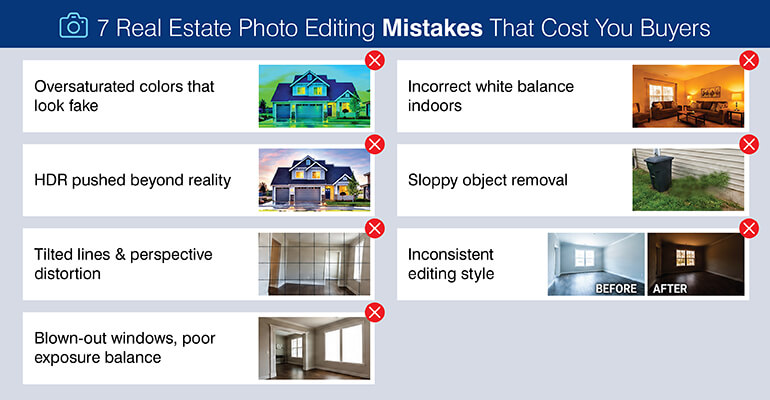
Poor real estate photo editing can reduce buyer interest in listings. However, amateur work and photo editing mistakes like oversaturation, poor white balance, or perspective errors affect credibility. Natural, consistent looking professional images help overcome buyer trust issues and improve property viewings and visits.
Table of Contents
Imagine a prospective home buyer scrolling Zillow at 9 p.m. who decides in under 5-10 seconds. They don’t read the property description first. They don’t check the square footage. They look at the property photos.
But what if the kitchen counters look orange, the windows are blown out to white, and the lawn looks neon green. The client will scroll past. Not because the property fails to meet their criteria, but because the photos fail to hold their attention.
A National Association of Realtors’ 2024 research, suggests that 87% of buyers confirmed that property listing photos determined which homes they visited. These numbers get cited constantly, but the negative impacts are rarely stated directly. Yes, photo editing errors have a direct, measurable effect on listing traffic and showing requests.
The National Association of Realtors (NAR) Code of Ethics states that all advertising from agents should be truthful. Since property listing photos are considered an advertisement by NAR, if an MLS platform identifies any obviously altered images, those images may be flagged as inappropriate.
In addition, in many areas of the country, listing agents who have caused buyers to rely on false information when making purchasing decisions may be liable for the damages to the buyer.
| Acceptable | Non-acceptable |
|---|---|
|
|
There is also a simple test to use on each photo. Ask yourself:
If the answer to either question is yes, your real estate photo editing has created liability for both you and your client and will create distrust from potential buyers as soon as they enter the home.
Platforms listing properties and providers of MLS Data:
MLS Data Providers and Platforms using MLS Data (whether aggregating the data, providing the original data or repurposing the original data) have the same obligations as Agents. That means that if you are distributing misleading property visuals without disclosing what edits were made, you may also have compliance issues within your data stream.
Want listing photos that actually drive more viewings?
The mistakes made by errors one through four can be easily seen upon first view (the kind of error that will result in the buyer skipping the listing) while the mistake(s) made by errors five through seven may occur at some point in time after the viewing of the photo, possibly during a closer inspection of the photo(s), or even more so when the actual property does not represent what the buyer has viewed online.
Both types of errors will cost you money; however, they will cost you money at different times within the conversion funnel.
Oversaturation occurs when the saturation or vibrance slider is greater than +40 within lightroom, resulting in grass appearing as a bright Neon Green, Skies appear Electric Blue and Interior Walls show a color that exists nowhere within the Physical Room.
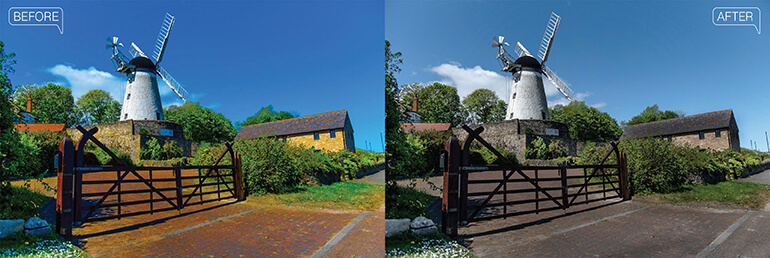
Most editors who make these types of edits confuse visual impact with visual accuracy. While saturated images tend to attract more initial views from potential buyers, once the buyer recognizes an image has been altered, the attention toward the image immediately turns negative.
An example would be if an editor had enhanced a Kitchen Countertop to Warm Orange and the Backsplash to Vivid Teal, it is perceived just as an Instagram Filter. This type of editing signifies that “Someone is Selling Not Showing.”
How to Fix in Lightroom
In order to correct oversaturation, adjustments should be made in Lightroom’s Color & Hue / Color panel instead of adjusting the Global Saturation Slider.
Adjustments should be made specifically to individual channels. Examples of such channels include:
Validate your work by using the Eyedropper on a Neutral Surface i.e. White Ceiling/Gray Concrete Floor to ensure the color alteration has been removed.
Legal Considerations
When the editor alters the wall color to a non-existent color (i.e. if the Buyer recognizes that the Wall Color shown in the Listing Photos was NOT actually present in the subject Property) it could potentially lead to Buyers filing Complaints and/or Arbitration against their Realtor/Agent for misrepresentation.
Excessive HDR photo errors occurs when multiple exposure brackets are merged at full opacity, producing halos around windows, flattened material textures on walls and flooring, and an image that reads as rendered rather than photographed.
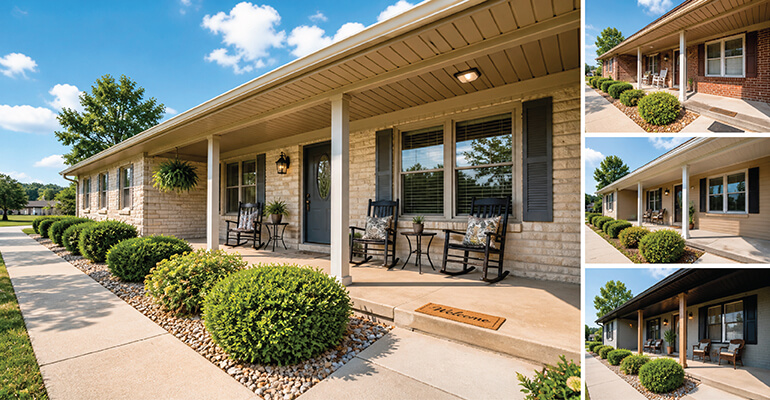
HDR processing is part of standard real estate photography post-production workflow. Problem is the degree. When blend layers are left at 100% opacity, algorithm will overcompensate: window edges glow, hardwood grain disappears and image loses the sense of depth that makes room feel like you can live there.
Before selecting approach for HDR processing technique, know how they compare and contrast with each other.
Understanding your HDR options
| Technique | What it does | Best for | Main risk |
|---|---|---|---|
| HDR blending | Combines multiple exposures to balance highlights and shadows | High-contrast scenes with bright windows and dark interiors | Can look unnatural or over-processed if not done carefully |
| Flambient | Blends flash and ambient light images for accurate colors and lighting | Professional real estate photography with natural color accuracy | Time-consuming and requires skill in shooting and editing |
| Single RAW | Uses one RAW image and adjusts exposure, color, and detail | Quick edits and simple lighting conditions | Limited dynamic range compared to multi-image techniques |
For most interior shoots with mixed light sources, flambient creates cleaner results than HDR especially around windows. Flash exposure handles interior surfaces while ambient layer handles window light and blend avoid halo issues entirely.
If HDR is the only option available: reduce the merged layer’s opacity to 60 – 75% and blend back with the base exposure. In Lightroom, keep Dehaze at +20 or lower. Before exporting zoom to 100% and check every window edge for halos. Pull Highlights down in masked window area if needed.
Distortion due to perspective occurs when using wide-angle lenses which will create convergence or tilt of vertical lines such as door frames, wall edges or window reveals. This creates an apparent structural irregularity within the space that makes the room appear less than its actual size.
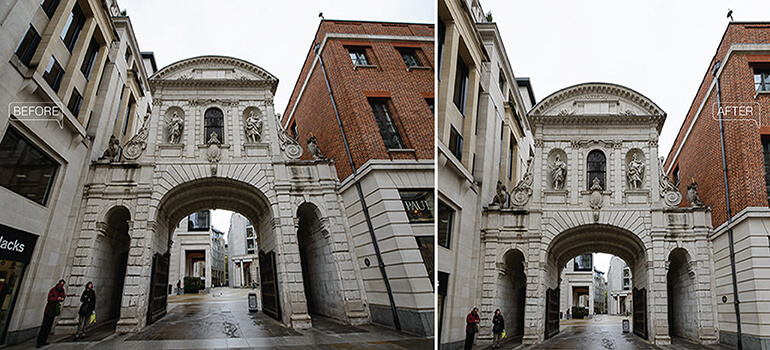
The use of wide-angle lenses (in most cases 16-24mm full frame) in real estate photography is common since it makes a room appear larger. However, this method also causes keystone distortion, where straight vertical lines “bow” inward at the top of each image.
It’s possible for buyers to unconsciously recognize the distortion and may feel the room has been distorted. In higher-end listings, a buyer may interpret the distortion as an error in the quality of the professional listing photography.
Correcting distortion in Lightroom:
Correcting distortion in Photoshop:
Be aware that if you correct too much, then your images will show walls as being mathematically vertical rather than visually and geometrically accurate – similar to what you would see in an architectural drawing.
A blown-out window happens when you have the correct interior exposure as well as a 3-5 stop difference of brightness from the interior to the exterior daylight coming into your windows. This creates clipped windows that are completely white and eliminate all architectural detail at the frame.
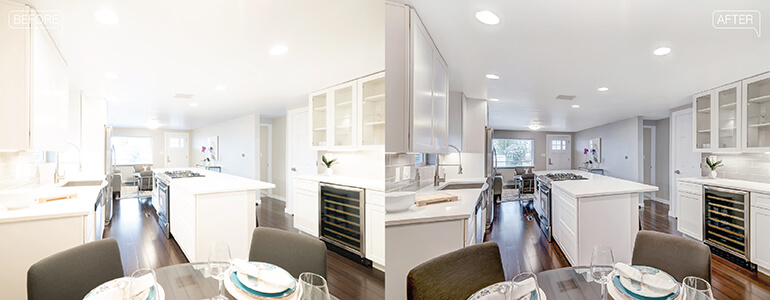
This is a physical limitation of capturing an image and has nothing to do with how you take the picture; it’s something you will be able to address after the fact in editing.
Standard Lightroom Workflow:
The question about replacing skies: If shooting on an overcast day and you replace a gray sky with another neutral and realistic gray sky for the time of year and location of your shoot, then replacing a gray sky is perfectly fine.
However, if you replace a gray sky with a dramatic sunset or clear tropical blue for your property in a colder climate, then you are misrepresenting the property.
Use the Histogram to quickly check that neither end is clipped prior to exporting; in Lightroom, press Cmd + Shift + H to turn on the Dual Channel Clipping overlay.
Incorrect white balance occurs when the color temperature of the edited image doesn’t match the dominant light source, producing an orange-yellow cast from uncorrected tungsten fixtures or a blue-grey cast in rooms lit primarily by daylight through north-facing windows.
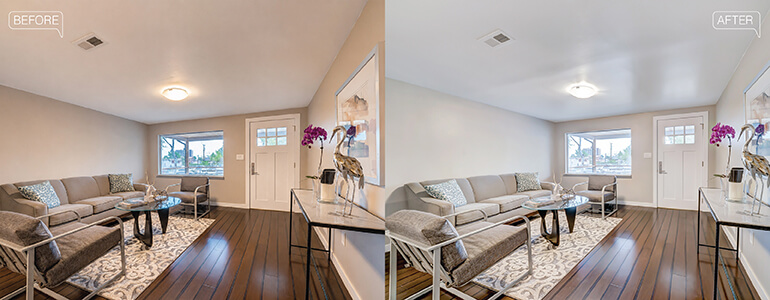
Interior shoots present a compound light source problem that exterior photography doesn’t. A typical living room runs ceiling fixtures at 2700K–3000K (warm amber) alongside daylight through windows at 5000K–6500K (cool blue-white). Auto white balance averages these sources, which usually means neither the walls nor the shadows look accurate.
The precise fix:
White balance errors are the most common source of buyer disappointment at the showing stage. The walls look different. The flooring looks a different shade. The kitchen reads warm online but cool in person. These gaps chip away at trust faster than any other editing error because they feel like deliberate misrepresentation, even when they aren’t.
Using poor object removal techniques, such as Content-Aware Fill or the Clone Stamp tool can leave you with repeating patterned textures; blurry spots where objects once existed; missing shadows; and broken reflective flooring. This tells any savvy viewer that your image has been edited.

While removing objects is acceptable and even legal, it must be done with some boundaries. For example, removing a trash barrel from a driveway or pictures off the walls in a house to stage the home in a vacant condition is a way to show a vacant home as opposed to a lived-in home.
As long as you do not alter anything that would affect the structural integrity of a home; i.e., cracks in plaster, water stains, wetness, etc. – you are fine. These are considered disclosure items and should be disclosed by the seller – not something you would hide during staging.
Most likely, the biggest mistake people make while attempting to remove objects is using the Spot Healing Brush for large area removals. The brush tends to sample from too small an area and creates “tiles” on smooth areas such as hardwood floors, tile, and concrete.
The right method for object removal in Photoshop:
An easily detectable cloning job is worse than having left the object alone. If a buyer sees an obviously cloned patch – they will assume that there may be much more wrong that you’re trying to hide.
Editing inconsistency arises when separate images in a listing have been edited without referencing a common preset; e.g., a warm-toned kitchen photo is followed by a cool-toned bedroom photo, or a bright-toned outside photo is followed by an under-exposed inside bathroom photo.
Buyers view a listing as an uninterrupted flow of photos from start-to-finish. When there is inconsistent color-grading across those photos, it breaks up the uninterrupted flow of the listing into fragments.
At best, this will undermine any brand identity established through consistent styling by the agency; at worst, buyers may assume that the different photos were shot at different times with varying lighting conditions.
Operational Fix: Preset-Based Workflow:
Create or purchase a set of Lightroom presets specifically designed for use in Real Estate: one interior preset, one exterior preset and possibly one for baths (due to chrome and tile needing a lower white balance).
For outsourced batches: Include a reference image and a style guide that outlines what you want, including a desired color temperature range (e.g. interior spaces should be within 3200k – 3800k), maximum sharpness etc.
Looking to scale your property photo listings with consistent visuals?
This is a pre-delivery checklist that should be performed prior to delivering any image set of real estate. Performing the complete checklist will add about 12-15 minutes of processing time per image. This amount of time is less than what would have been spent revising each error that reaches the client.
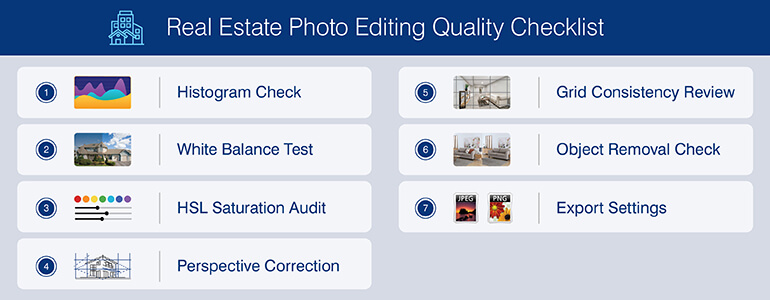
U.S.-based real estate photographer and video producer had twelve to fifteen listing shoots weekly; all the workflow was done by an individual (part-time) who would edit each photo one-at-a-time. There was no preset system, and no standard reference used as a white balance.
All of this created very predictable issues: varied color treatment across multiple listings, occasional “HDR” over-processed photos, and regular delays to meet the agents’ required 48-hour upload deadlines.
As part of its services, HitechBPO implemented following three changes:
The results included: consistent visual treatment throughout each listing within a single batch; 24-hour turnaround time on standard volume batches; and a documented reduction in request revisions. The photographer’s time has moved from postproduction to shooting and acquiring clients.
Read full case study here →The seven most common real estate photo editing mistakes – Over-Saturation, Excessive HDR, Perspective Distortion, Incorrect White Balance, Blown-Out Windows, Poor Object Removal, Inconsistent Styling – each of these is caused by an identifiable, correctable factor; none need new photos shot. All are correctible via the workflows described in this article using Lightroom or Photoshop.
Listings utilizing real estate marketing visuals which have been properly edited will receive more qualified showings, produce fewer ‘disappointment’ gaps between the buyer/renter’s on-line viewing experience and their in-person view of the property, and provide less potential liability for Listing Agents.
Maintaining that standard at high volumes can best be accomplished by establishing a disciplined in-house process or by partnering with an established editing provider.
Hitech BPO provides real estate photo editing services for image correction and delivers all edits within 24 hours for standard batch sizes-with Hitech BPO’s Pre-Export Checklist used as part of each edit.
What’s next? Message us a brief description of your project.
Our experts will review and get back to you within one business day with free consultation for successful implementation.

Disclaimer:
HitechDigital Solutions LLP and Hitech BPO will never ask for money or commission to offer jobs or projects. In the event you are contacted by any person with job offer in our companies, please reach out to us at info@hitechbpo.com